Group Bookings & Split Bills: POS Setup for Large Parties in Singapore
Learn how to manage group bookings, set menus, and split billing efficiently with POS software in Singapore. Step-by-step guide for restaurants handling large parties.
A Saturday night at a zi char in Tanjong Pagar: 6 PM, a corporate team books 22 seats for a reunion dinner. Your server has their names on a scrap of paper. Three people want to split the bill. Two want separate invoices. One wants to pay by PayNow, another by card. By 8:30 PM, you're manually recalculating totals on a calculator while the kitchen wonders why orders are still coming in.
This is the group-booking chaos that kills your margins and your staff's sanity.
Large party reservations are a revenue opportunity—but only if you can execute them without losing 45 minutes to admin. The right POS system lets you pre-load a group booking, lock in a set menu, assign seats, and split the bill in seconds. Let's walk through the workflow.
Step 1: Create the Group Booking in Your POS
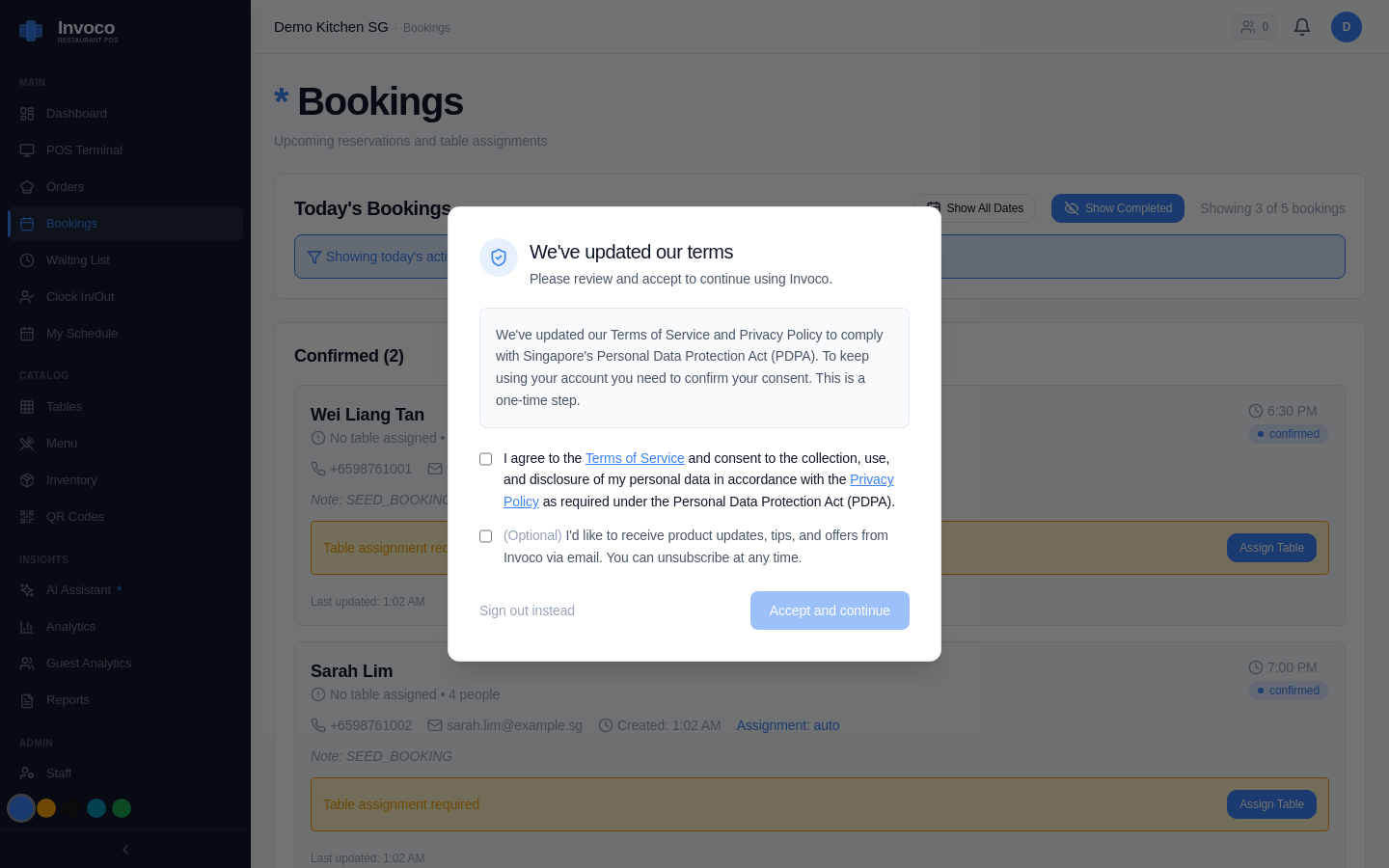 Invoco reservations page showing upcoming bookings by date
Most modern POS systems in Singapore now include a booking module. Here's the flow:
1. Log into your POS backend (web or tablet). 2. Navigate to Bookings or Reservations. 3. Enter the group details: - Date and time - Party size (e.g., 22 guests) - Contact name and phone number - Special requests (e.g., "vegetarian options", "birthday cake at 8 PM") 4. Assign a table layout or multiple tables if needed. Some POS systems let you pre-assign specific seats. 5. Save and confirm.
Systems like Eats365 and Qashier both offer booking modules that sync with your table management, so your floor staff knows which tables are reserved and when.
Invoco tip: Pre-load the group booking 48 hours before arrival so your kitchen can prep ingredient quantities and your front-of-house can brief the team on table assignments.
Step 2: Lock in a Set Menu (Optional but Powerful)
For group bookings, many restaurants offer a fixed menu at a fixed price per head. This simplifies ordering and billing.
1. In your POS, create a set menu or package (most systems call it this). 2. Define the courses: e.g., "3-course set at $38 per person" with: - Starter options (guest chooses 1 of 3) - Main options (guest chooses 1 of 4) - Dessert (fixed or choice) 3. Link this package to the group booking. 4. When the group arrives, your server taps the booking, and the set menu appears as a single line item—no à la carte confusion.
This also helps your kitchen: they see "22 covers, set menu" instead of 22 individual orders, so prep is predictable.
Step 3: Assign Seats and Track Orders by Seat
This is where table management saves you.
1. When the group is seated, your POS should show the table layout with seat numbers (1–22 or split across 3 tables). 2. As each guest orders, tag the order to their seat number. 3. The kitchen display system (KDS) shows orders by seat, so plating is organized. 4. Your server knows exactly which plate goes to which person.
If you're using a kitchen display system for high-volume service, seat-level order tracking prevents the "whose fish is this?" scramble.
Step 4: Handle Split Billing at Checkout
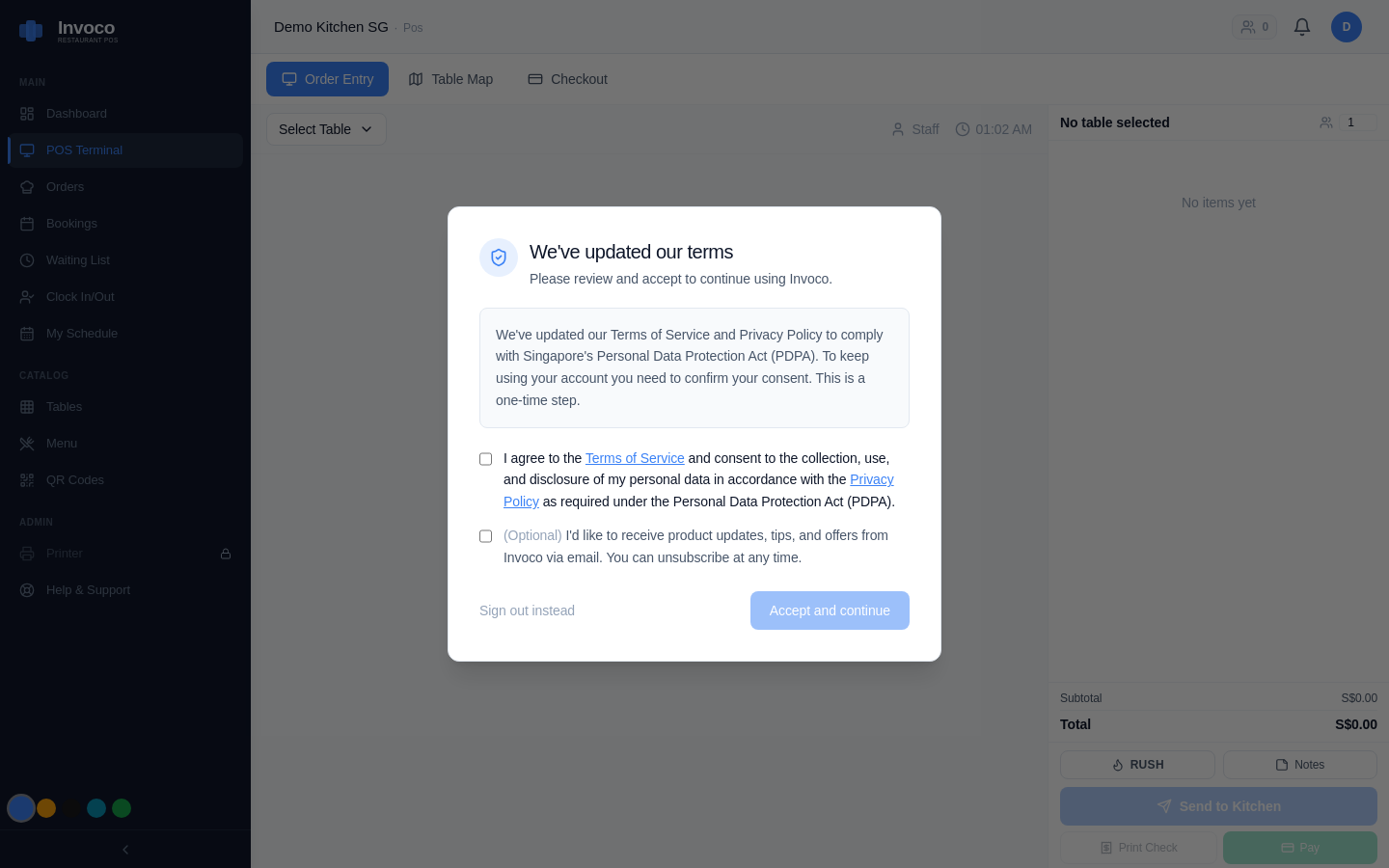 Invoco POS terminal checkout view with menu and payment options
This is the critical moment. Your POS must support itemized split bills.
1. When the group finishes, pull up the booking in your POS. 2. Select Split Bill (or Divide Bill). 3. Assign each item (or course) to a guest or a payment group: - Guest A: mains + wine = $65 - Guest B: mains + dessert = $52 - Guests C–E (shared): appetizers + group bottle = $120 ÷ 3 = $40 each 4. Your POS calculates GST per split and generates separate invoices. 5. Process payments: - Guest A: PayNow (instant) - Guest B: Card (Stripe/HitPay) - Guests C–E: Cash
Each guest gets their own receipt by SMS or email. No manual math. No disputes.
Why This Matters for Your Margins
Managing group bookings badly costs you in three ways:
- Time: 30–45 minutes of manual billing per large party = lost table turns.
- Errors: Miscalculated splits lead to customer complaints and refunds.
- Kitchen waste: Unclear orders mean over-prep or wrong dishes.
A POS with integrated booking, table management, and split billing cuts that overhead by 70%. You're not saving money—you're saving time, which is money.
How Invoco Handles Group Bookings
Invoco's table management module lets you pre-load group bookings with seat assignments, lock in set menus, and split bills by guest or payment group at checkout. When you approve the booking, your kitchen display shows orders tagged by seat number, so plating is organized and your server knows exactly who gets what. At the end of the night, split billing generates separate invoices and receipts by email or SMS—no calculator, no disputes. The result: large parties that used to take 45 minutes to close now take 5.
Step 5: Reconcile and Report
After the group leaves:
1. Your POS automatically logs each payment method (PayNow, card, cash). 2. Revenue is split across your payment reconciliation report. 3. If you use Xero integration, approved invoices post automatically as ACCPAY bills, so your accountant has a clear audit trail for GST.
This is especially important if you're managing multi-outlet chains or franchises—each location's group bookings roll up into a single dashboard.
Common Pitfalls to Avoid
- Don't pre-charge the full group. Wait until they're seated and have ordered. Circumstances change (no-shows, last-minute cancellations).
- Don't assume your POS supports split billing. Test it with a small group first. Some budget systems only split by headcount, not by item.
- Don't ignore the kitchen. Brief them on the group size and menu in advance. A surprise 22-cover order at 7 PM will break your service.
FAQ
Q: Can I take a deposit for a group booking?
Yes. Most POS systems let you record a deposit (cash or card) against the booking. At checkout, the deposit is credited against the final bill. Check your POS's booking settings—some require you to process the deposit as a separate transaction.
**Q: What if a guest wants to pay for the whole group?
Simple: don't split the bill. Process it as a single transaction. Your POS will still tag it to the group booking for reporting.
**Q: How do I handle dietary restrictions for a set menu?
When you create the set menu, add a notes field or modifiers (e.g., "no shellfish", "vegetarian"). Your server notes the restriction when taking the order, and the kitchen sees it on the KDS. Some POS systems let you create alternate set menus (e.g., "3-course set, vegetarian") for groups with specific needs.
Sources
- Management and Config | EPOS POS System
- Free Booking System & Appointment Software - Square
- Smart POS System - Qashier Singapore - QashierPOS
- Singapore Restaurant POS & Hotel Ordering System | AI Captain
- Best POS System for Retail and Restaurants in Singapore - HitPay
- Top 5 Event Point of sale Solutions in Singapore (in 2026)
- Restaurant POS System | MEGAPOS Singapore
- How to Create and Handle Group Bookings - SabeeApp
- The Best Cloud Appointment Booking System in Singapore 2026
- Eats365 Singapore - Inline | Restaurant POS Integration